Login
.png)
Dashboard Reporting
This page explains how to navigate your dashboard reporting, understand key metrics, and troubleshoot common reporting questions.


Authorizations
How to find your authorizations:
Go to your dashboard > Reporting > Authorizations
Overview
The Authorization report shows all card authorizations processed under your merchant account(s). You can use the filter in the top right corner to sort by card type or adjust the date range.
Terms you should know:
Total Authorizations:
The total number of authorization attempts across all terminals linked to your merchant account.
Approval Ratio:
The percentage of authorizations that were approved compared to all attempts.
Total Amount Authorized:
The total dollar amount of all authorization attempts, including both approved and declined transactions.
Authorization Amount Approval Ratio:
The percentage of approved dollar volume compared to the total dollar amount attempted.
Authorizations Table Columns
DBA
Shows which DBA processed the transaction. Helpful for merchants operating under multiple DBAs.
Card
Displays the card brand used. PIN debit transactions will appear as “Other.”
Number
The truncated card number associated with the authorization attempt.
Amount
The dollar amount of the authorization.
TID
The Terminal ID used to process the transaction.
Transaction Type
Indicates whether the transaction was credit, debit, PIN, or void.
Message Type
A four-digit code identifying the type of transaction, such as authorization or void.
Payment Type
Specifies whether the transaction was card present or card not present.
Authorization Date
The date the authorization attempt was made.
Authorization Number
The unique authorization number assigned to the transaction.
Response Code
A two-digit code that shows the authorization response result.
________________________________________________________________________
Batches
How to find your batches:
Go to your dashboard > Reporting > Batches
Overview
The Batches section of your dashboard gives you quick access to batch details for your MIDs (merchant accounts).
Use the filter at the top of the page to search by Merchant ID (MID), V#, card number, or date range. You can also export the data directly from the filter to download a report.
________________________________________________________________________
Payouts
How to find your payouts:
Go to your dashboard > Reporting > Payouts
Overview
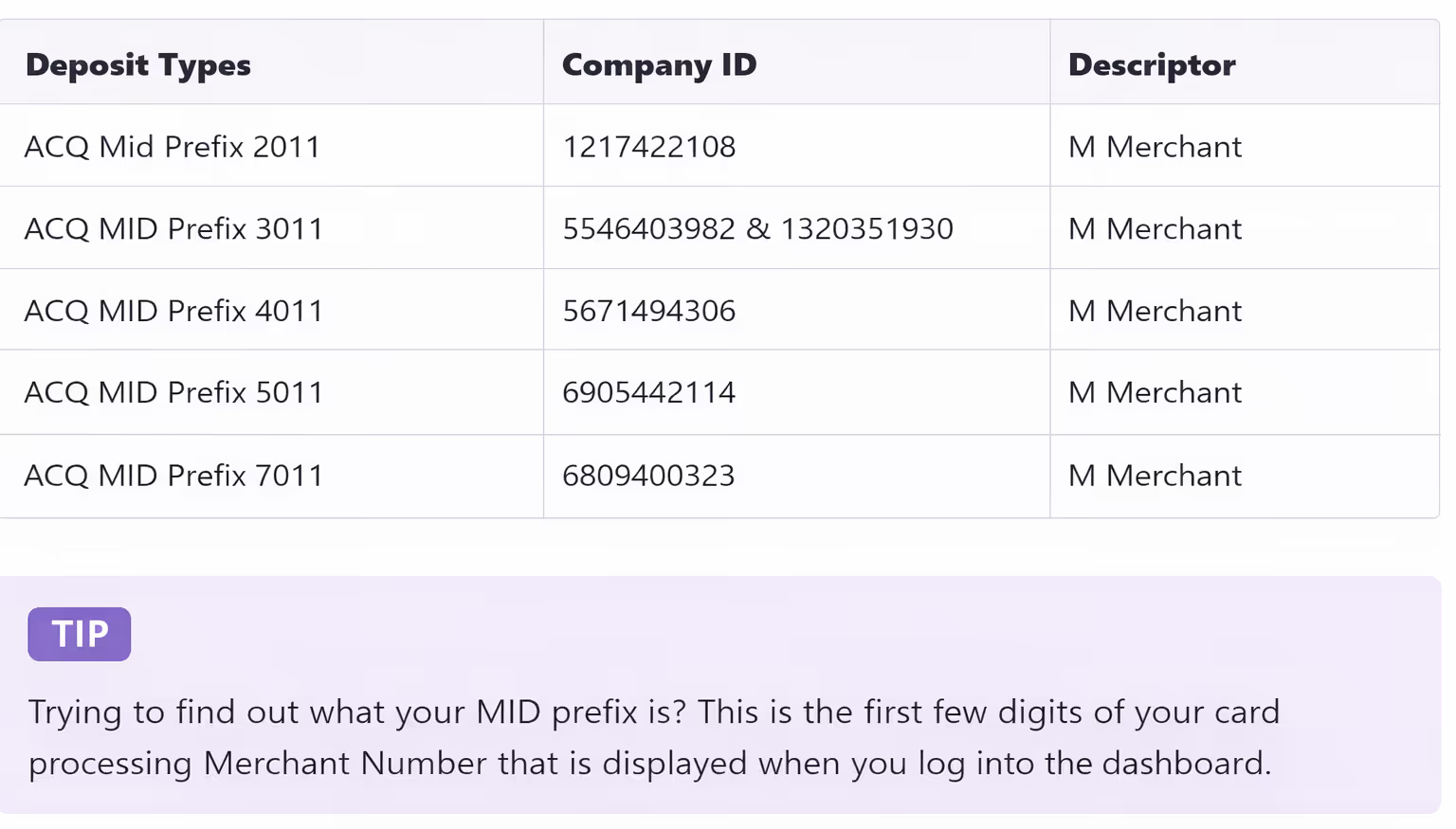
The Payouts report shows details about deposits sent to your bank account. Here, you can review related fees, reserve amounts, and any chargeback activity tied to those deposits. The table below outlines how deposits from processing services will appear on your statement.
________________________________________________________________________
ACH Rejects
How to find your ACH Rejects:
Go to your dashboard > Reporting > ACH Rejects
Overview
ACH Rejects tied to your merchant account will appear on the ACH Rejects page, and a support ticket will be created automatically to help resolve the issue quickly.
Click the plus (+) icon to expand the entry and view additional details. Select the ticket number to open the related support ticket, respond, and move toward resolution.
________________________________________________________________________
Statements
How to find your statements:
Go to your dashboard > Reporting > Statements
Overview
The Statements page shows your monthly processing statements for each MID.
Use the filter in the top right to choose your processing method, either Acquiring for credit cards or ACH for checks. Then select the appropriate merchant account and time period, and click Apply Filter. To download a statement, simply click the hyperlink for the month you’re viewing to access the PDF.
________________________________________________________________________
Chargebacks
How to find your chargebacks:
Go to your dashboard > Reporting > Chargebacks
Overview
Chargebacks happen when a customer disputes a transaction directly with their card-issuing bank. When that occurs, the previously deposited funds are pulled from the merchant’s account and returned to the customer. If you believe the dispute is invalid, you can challenge the chargeback by submitting evidence to the issuing bank within the required timeframe.
How to upload documents
Use the filter to search for the case by date, Case ID, ARN, or the last four digits of the card number.
Go to your dashboard > Reporting > Chargebacks > History & Updates > Click on the chargeback's 'Details' > Scroll down to Case History and click the Upload button
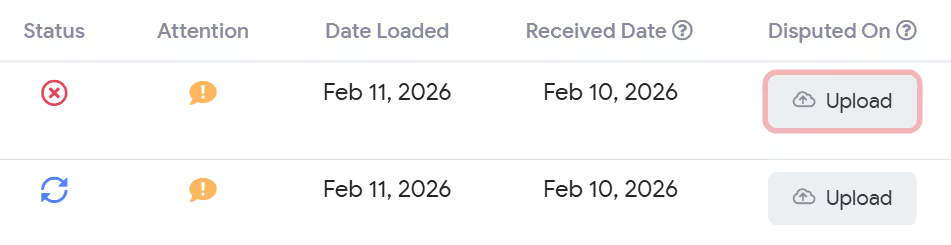
Status and what they mean